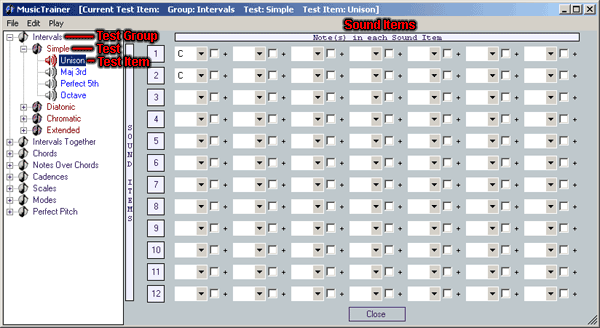
| The Treeview on the right represents all 7 Test Groups, the individual
Tests under each group, and the Test Items that make up each Test. |
|
| The 12 sets of dropdown boxes and checkboxes represent the Sound Items
collection for each test item. When you click on a Test Item in the
Treeview the Sound Items that make up that Test Item will be displayed on
the right. |
|
| Each Test Item can consist of 12 Sound Items. Each Sound item can
consist of 1 to 7 notes played simultaneously. For example in the image
above the Unison Test Item of the Simple Test contains 2 sound items. Each
Sound Item consists of a C note played by itself. You can double click on
the Test Item in the Treeview to play the Sound Items. |
|
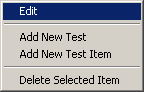
| If you Right Click on a Test or a Test Item, you will be presented with
the following menu. |
|
 |
|
| Edit |
- This will allow you to change the name displayed for a Test or
Test Item. It will highlight the item in the Treeview for editing,
just like in Windows Explorer.
|
| Add New Test |
- This will allow you to add a new Test to the currently selected Test
Group. By default it will be added with the name New Test 1. Right
Click and choose edit to change the name to whatever name you would
like for your new Test.
|
| Add New Test Item |
- This will allow you to add a new Test Item
to the currently selected Test.
You can add Test Items to existing
Tests or to custom Tests
that you have added. The Test Item
will be added with the name New Test Item 1.
Once again Right Click on it and
choose Edit to change the name to
the name that you would like for your new Test
Item.
- Once you have added a new Test Item
and renamed it you will need to add Sound
Items for your Test Item.
Each Row of dropdown boxes and check boxes represent one Sound
Item. You can have up to 12 Sound
Items for each Test Item.
You can have up to 7 notes played simultaneously for each Sound
Item. Select the notes from the dropdown for each Sound
Item. The checkbox raises the note by one octave.
- All Sound Items should be based
on the key of C. You can transpose them to any other key using the
MIDI options panel on the main screen.
- Double click on your new Test Item
to hear you Sound Items as you
make changes.
|
| Delete Selected Item |
- This will delete the selected item. If a Test
is currently selected, it will delete the Test
and all the Test Items that belong
to that test. If a Test Item is
selected, it will delete just the Test Item.
|
|
| Restore Defaults |
- If you made changes to the Tests
and Test Items, but would like to
return to the default Tests and Test
Items that were installed with Music Trainer, click the File>Restore
Defaults menu. Remember: You will lose any changes to Tests
or Test Items that you have made
if you restore the default settings.
|
|
|
| Copyright
2012 Rick Bales |