Music Trainer 1.0 Tests |
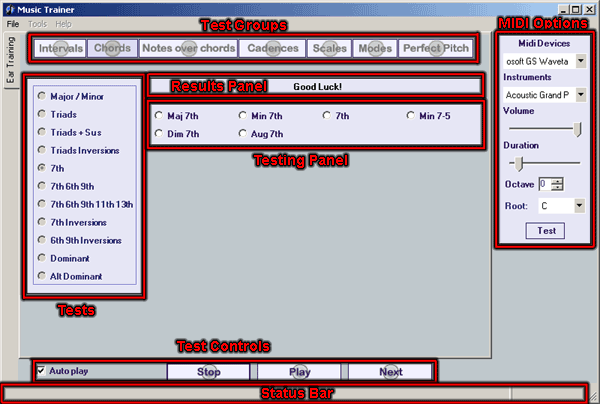
| The main screen consists of 7 sections. |
|
| The Test Group option buttons are listed left to right along the top. The Tests belonging to each group are in the left panel. The center panel is the Test Panel where your choices are displayed. The right panel contains the MIDI options panel. The Test Controls are located along the bottom of the screen. |
| To take a test you must have a MIDI synth device on your machine. Check your MIDI settings in the MIDI panel on the left side of the screen. |
| Getting Started. |
|
| The AutoPlay checkbox, when checked will automatically play the next Test Item, as soon as you get the answer correct. It is checked by default. If you uncheck it, you will need to click the Next Button to hear the next Test Item |
| A group of Test Items will appear in the Test Panel in the center of the screen. The computer will choose one of these Test Items randomly and play it. Listen to the Test Item played and click on the test item that you think that it is. Your results will be displayed in the Status Bar, and in the Results Panel just above the Test Items in the Test Panel. |
|
To hear the Test Item again you can click the Play Button or press the Space Bar on your keyboard. If you get stuck and want to compare all the choices you can Right Click on a Test Item in the Testing Panel. This will play the item that you have right clicked on. You can then click the Play Button to compare the item that you are trying to identify with each individual item. When you have made your decision, Left Click on the Test Item to make your choice. |
| If you cannot identify an item, you can click the Next button or the Page Up key on your keyboard to go on to the next randomly selected Test Item. |
| As you make each selection the program will keep track of how many items that you have correctly identified, and display the results in the Results Panel and in the Status Bar. |
| You can quit the test at any time by clicking the Stop Button. You will then be presented with a total of how many items you correctly answered, and how many tries that you took. |
| Copyright 2012 Rick Bales |